Screenshots
App details
- Size
- 12.47 MB
- Updated
- September 5, 2011
- Requires
- Windows 8
- Language
- English | Arabic | Czech | Danish | Germ...
- License
- Free
- Developer
- Talha Bin Tariq
- Category
- Windows OS
SoftPas in:
This product is also available in the following languages:
About City Lights Theme
Download City Lights Theme – Free Windows 7 Urban Landscape Desktop Theme
Overview
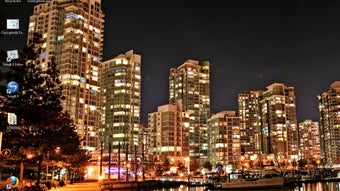
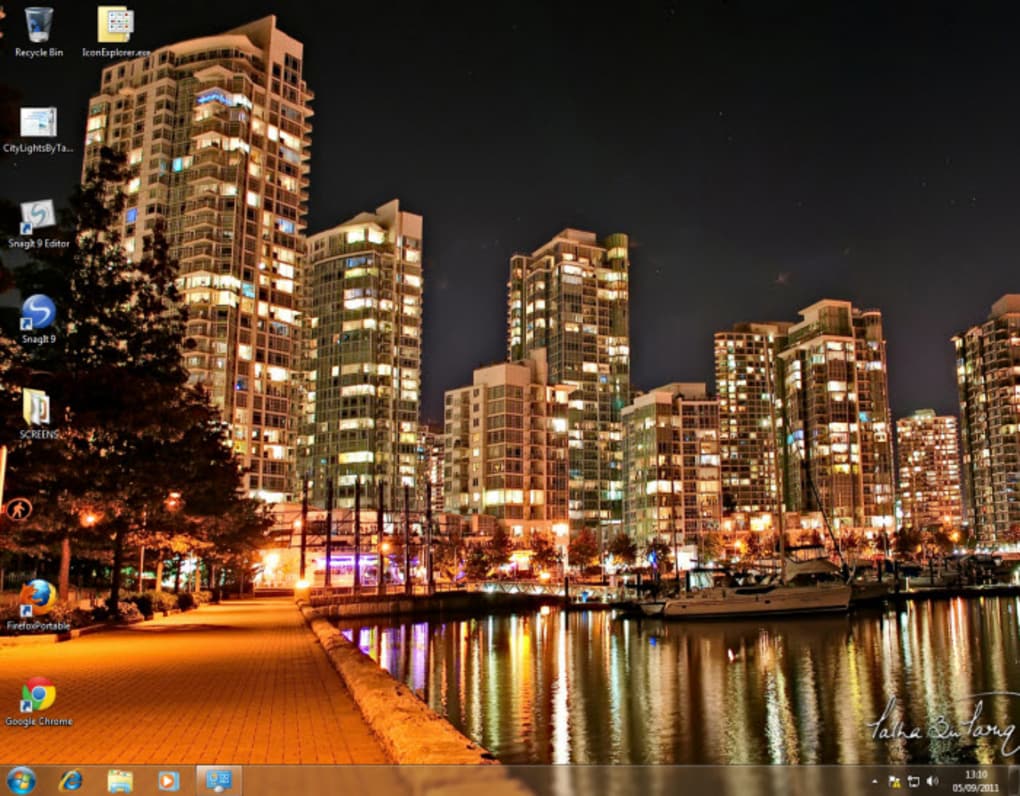
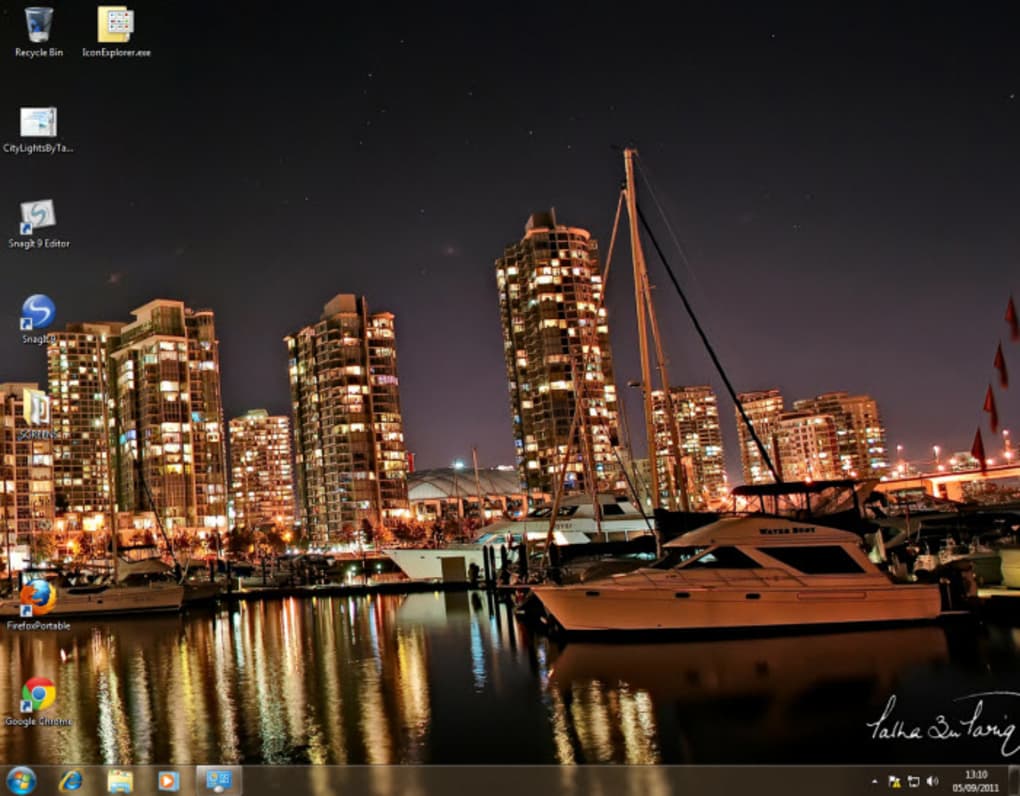
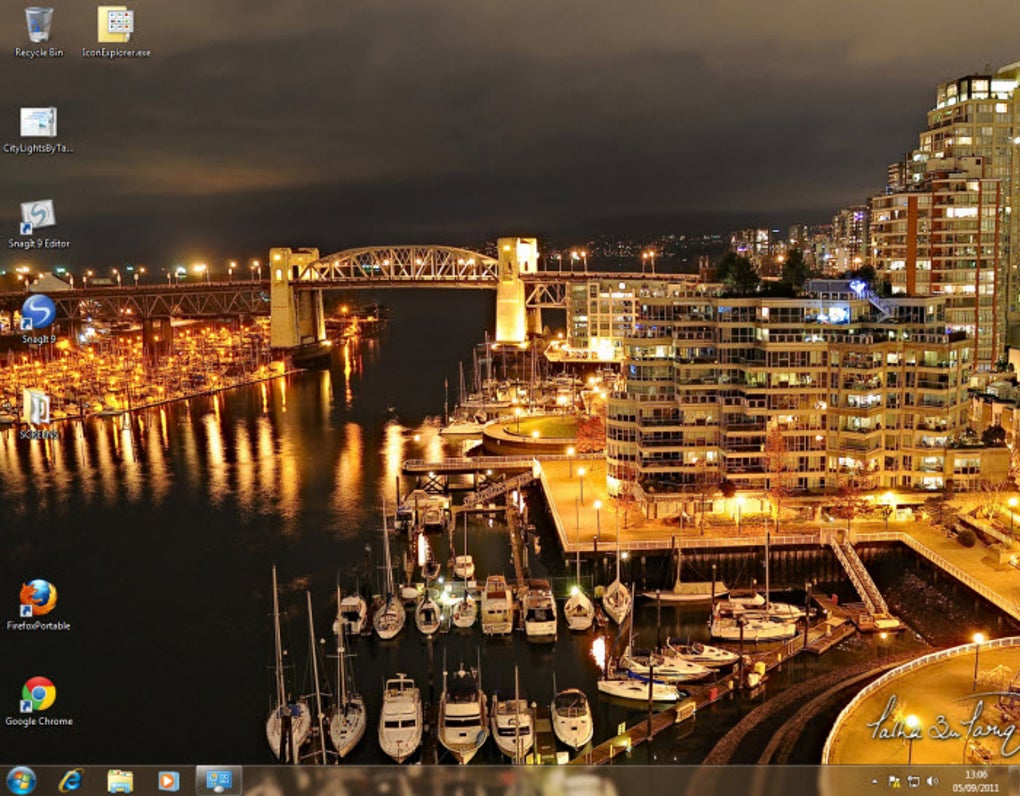
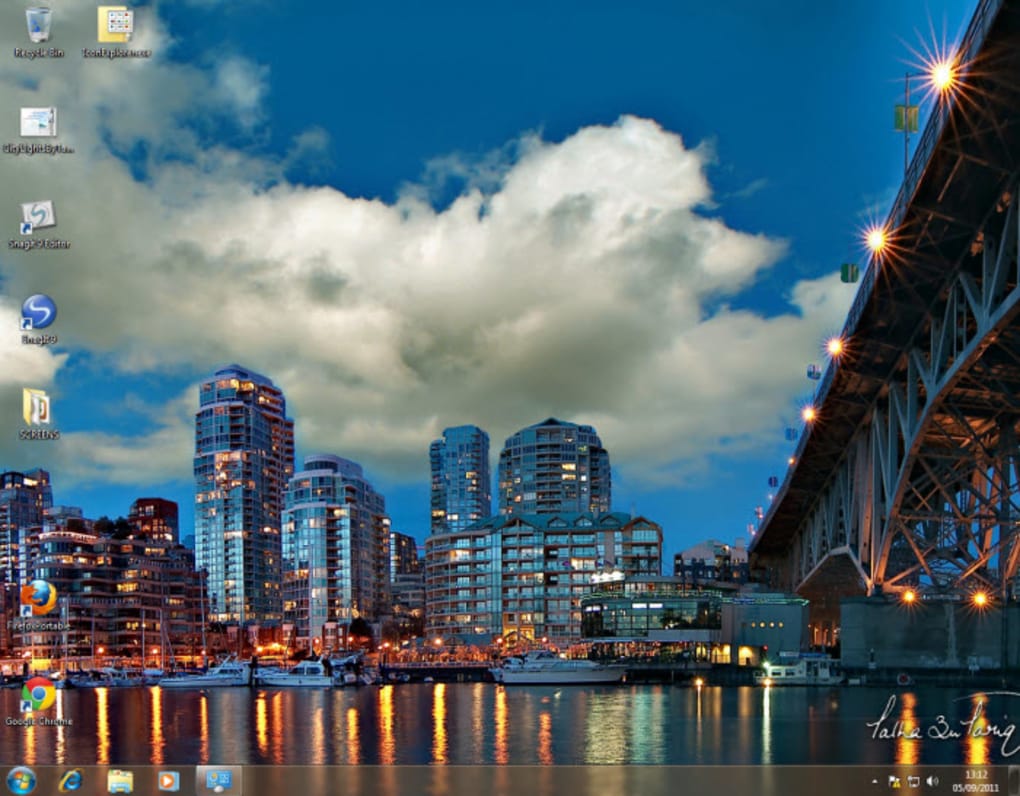
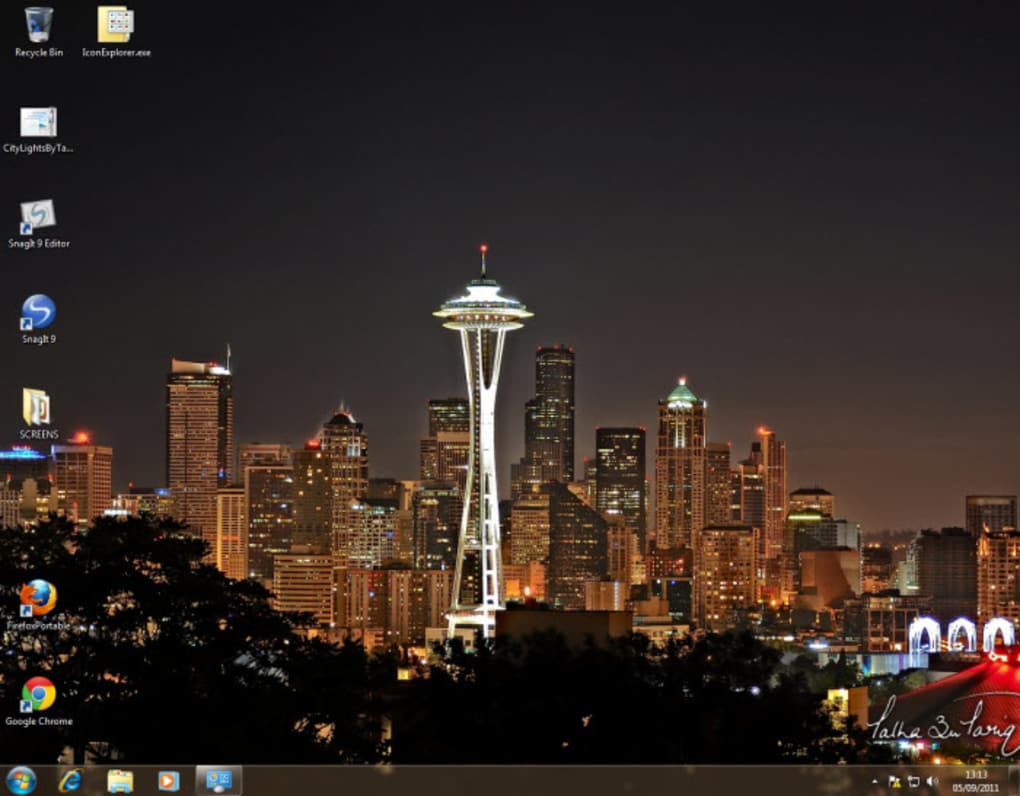
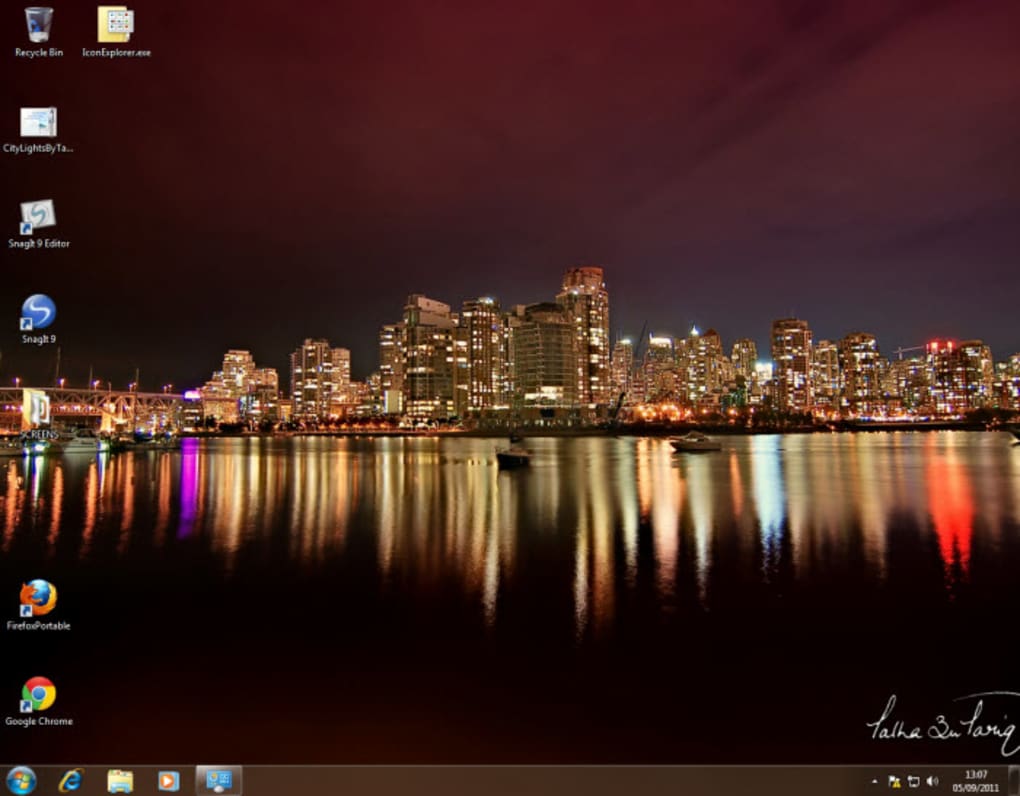
City Lights Theme is a beautifully crafted desktop theme designed exclusively for Windows 7 users who love the glow of city skylines. Photographed by Talha Tariq, the pack contains a curated selection of high‑resolution images from two iconic Pacific Northwest metropolises – Vancouver and Seattle. Each picture captures the dynamic interplay of neon, twilight, and architectural silhouettes, turning your desktop into a living window onto the West Coast’s most vibrant urban scenes. While the theme does not include a dedicated screensaver, the sheer visual impact of the images makes it an instant favorite for anyone who enjoys photography, travel, or simply a calming yet energizing backdrop while working or gaming.
Beyond pure aesthetics, City Lights Theme is built to integrate seamlessly with Windows 7’s native personalization engine. Once installed, the theme automatically applies the chosen wallpaper, adjusts the system color scheme to match the dominant hues of each photo, and updates the lock‑screen background for a consistent look across the entire user experience. The theme is completely free, distributed through reputable download portals, and is regularly updated to fix any minor compatibility quirks that may arise after major Windows updates.
Because the images are taken from real cityscapes, you’ll notice subtle details – a ferry crossing the water, the shimmer of rain‑slicked streets, or the glow of distant mountains – that give the desktop a sense of depth and realism. Whether you’re a photographer looking for inspiration, a city‑enthusiast who misses the Pacific Northwest, or simply someone who wants a fresh, eye‑catching backdrop, City Lights Theme delivers a polished, high‑quality visual upgrade without taxing system resources.
Key Features and Step‑by‑Step Installation
Feature List
- 30+ ultra‑high‑definition images of Vancouver and Seattle captured at golden hour and night.
- Automatic color‑scheme synchronization with Windows 7 themes for a cohesive look.
- Optimized file size ensures fast loading and minimal impact on system performance.
- Easy one‑click installer that adds the theme to the Personalization control panel.
- Free updates via the developer’s website, keeping the theme compatible with future Windows 7 patches.
- Supports multiple monitor setups – each screen can display a different cityscape.
Installation & Usage Instructions
Installing City Lights Theme is straightforward, even for users with limited technical knowledge. Follow these steps to get your desktop glowing in minutes:
- Download the package from the official link. The file is a small
.ziparchive (approximately 150 MB) that contains the theme installer and the raw image files. - Extract the archive to a temporary folder. Right‑click the
.zipand choose “Extract All…”. - Run the installer (named
CityLightsSetup.exe) as an administrator. Right‑click the file and select “Run as administrator” to ensure Windows can write the theme files to the system folder. - The installer will prompt you to choose a default wallpaper. You can either let it randomly select an image each login or pick a favorite manually.
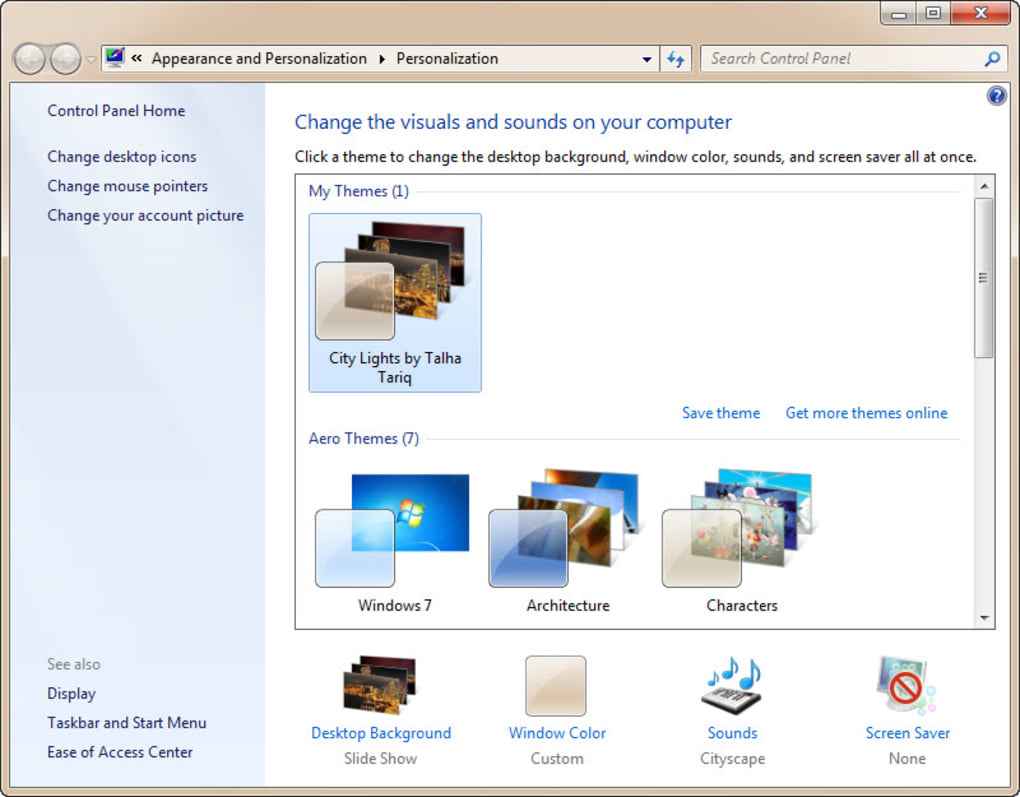
- After the installation finishes, open the Windows 7 “Personalize” control panel. The new “City Lights Theme” will appear under “My Themes”. Click it to apply.
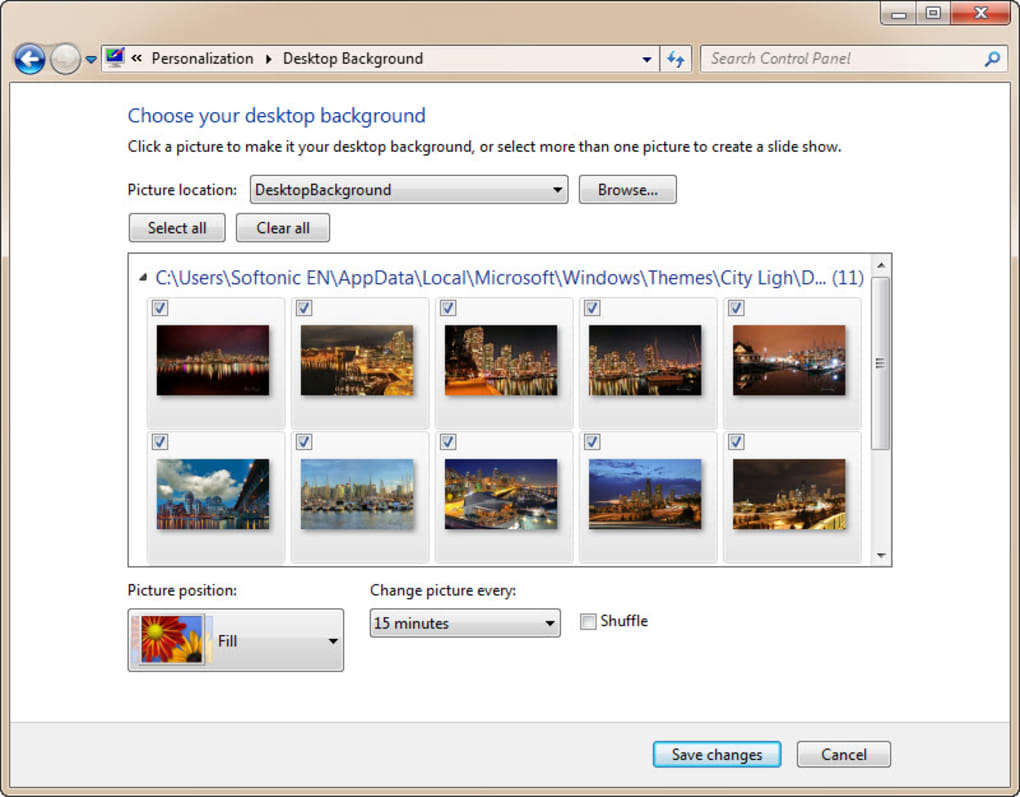
- If you use multiple monitors, go to “Desktop Background” → “Picture Position” and select “Tile” or “Center” for each screen as desired.
Once activated, the theme automatically updates the taskbar and window borders to echo the dominant colors of the current wallpaper, giving a harmonious visual flow. To change the wallpaper later, simply right‑click the desktop, select “Personalize”, and choose a different image from the theme’s library.
Compatibility, Pros, and Cons
Operating System Compatibility
City Lights Theme is built for Windows 7 (both 32‑bit and 64‑bit editions). The installer checks the OS version before proceeding, ensuring that the theme will not corrupt system files on unsupported platforms. While the theme is not officially packaged for Windows 10 or Windows 11, many users report that the .theme file can be manually imported, though some color‑synchronization features may not function perfectly due to changes in the newer personalization engine.
Pros
- Stunning visual quality: Professional photography delivers a premium look.
- Zero cost: Completely free with no hidden fees or adware.
- Lightweight: Minimal impact on CPU and RAM, keeping your PC fast.
- Easy installation: One‑click installer with clear prompts.
- Multi‑monitor support: Tailor each screen to a different cityscape.
- Regular updates: Developer provides patches for Windows 7 updates.
Cons
- No dedicated screensaver – you’ll need a third‑party solution for animated backgrounds.
- Limited to Windows 7; no native support for newer Windows versions.
- Color‑synchronization may not work perfectly on high‑contrast or accessibility themes.
- Image library is static – new city photos require a new release.
Frequently Asked Questions
Is City Lights Theme safe to download?
Yes. The theme is distributed through reputable sites and does not contain any malware, adware, or hidden fees. Always verify the download URL and keep your antivirus active during installation.
Can I use the theme on Windows 10?
The theme is designed for Windows 7, but you can manually import the .theme file into Windows 10. Some color‑synchronization features may not work as intended due to changes in the newer OS.
How much disk space does the theme require?
The full package is about 150 MB. After installation, the theme occupies roughly 100 MB of space in the Windows 7 themes folder.
Will the theme affect system performance?
No. The images are optimized for fast loading, and the theme uses Windows 7’s native personalization engine, which has a negligible impact on CPU or RAM usage.
Can I customize the wallpaper order?
Absolutely. After installation, open the “Desktop Background” settings, select the City Lights folder, and arrange the images in any order you prefer, or enable shuffle for random rotation.
Conclusion – Brighten Your Windows 7 Desktop Today
City Lights Theme offers a premium visual upgrade for Windows 7 users without demanding any payment or technical expertise. By combining Talha Tariq’s breathtaking city photography with a lightweight installer, the theme delivers an immersive urban experience that feels both modern and calming. Whether you’re working late at night, gaming, or simply browsing the web, the vibrant skylines of Vancouver and Seattle will keep your eyes refreshed and your mood uplifted.
Given its free price tag, minimal system impact, and easy setup, there’s little reason not to give it a try. Download the package, follow the quick installation steps, and let the city lights transform your desktop in seconds. If you love the look, consider sharing the theme with friends or leaving a positive review on the download site – the developer relies on community feedback to keep the theme updated and compatible with future Windows 7 patches.
Ready to bring the Pacific Northwest into your workspace? Click here to download City Lights Theme now and enjoy a free, secure, and stunning desktop makeover.
Guides & Tutorials
How to install City Lights Theme
- Click the Download button above.
- Once redirected, accept the terms and click Install.
- Wait for the City Lights Theme download to finish on your device.
How to use City Lights Theme
This software is primarily used for its core features described above. Open the app after installation to explore its capabilities.
User Reviews
No reviews yet. Be the first to share your experience.
You may also like
more
Llama 2
Free-to-use large language model As the new addition to Meta’s arsenal of langua...

NotebookLM
Revolutionizing the note-taking and idea-generation process NotebookLM is an exp...

Github co pilot
AI-inspired software development and coding platform GitHub Copilot is a browser...

Google Gemma
Google’s lightweight AI models Introducing Google Gemma , a family of cutting-ed...

AI Image Enlarger
A free app for Windows, by ai-image-larger. AI Image Enlarger is a free software...

DALL E
AI-driven text-to-image transformation engine DALL·E is a free graphic and desig...